Adjust SkyEmu display and controls
Explore screen shaders, color correction, touch-control scale and keyboard or gamepad bindings in SkyEmu.
Start with one change at a time
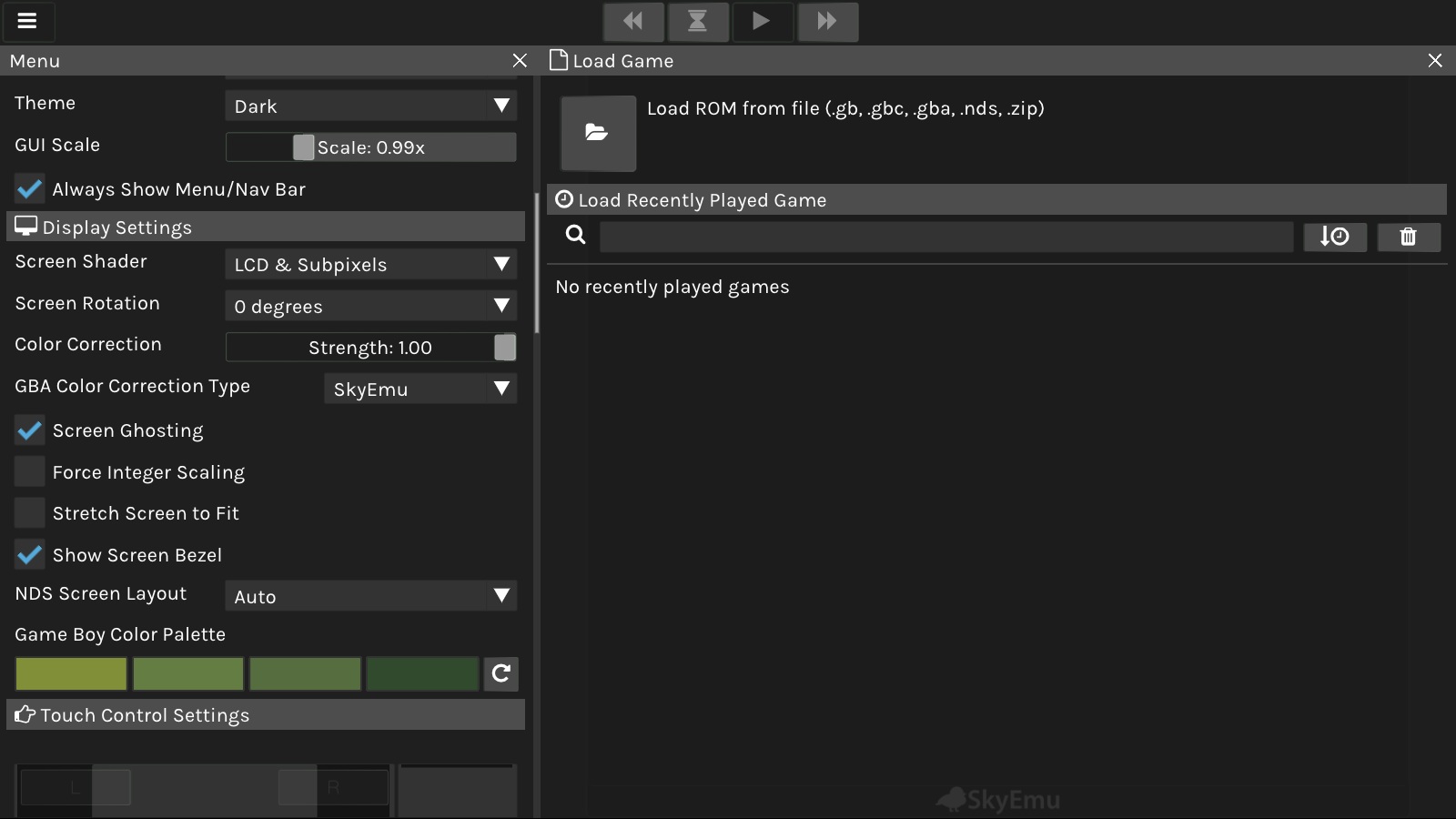
The supplied screenshots show display settings and controls separately. Change one option, check the result in your game, then decide whether to keep it. A setting that looks good in one game may be less useful in another.
Tune the picture
The display settings view includes a screen shader, screen rotation, color correction, screen ghosting and scaling options. Force Integer Scaling preserves whole-number scaling when it fits; Stretch Screen to Fit favors filling the available display. Their practical effect depends on screen size and the game.
The same view includes DS screen layout and a Game Boy color palette. These are interface options, not proof that a particular DS game is compatible.
Adjust touch controls
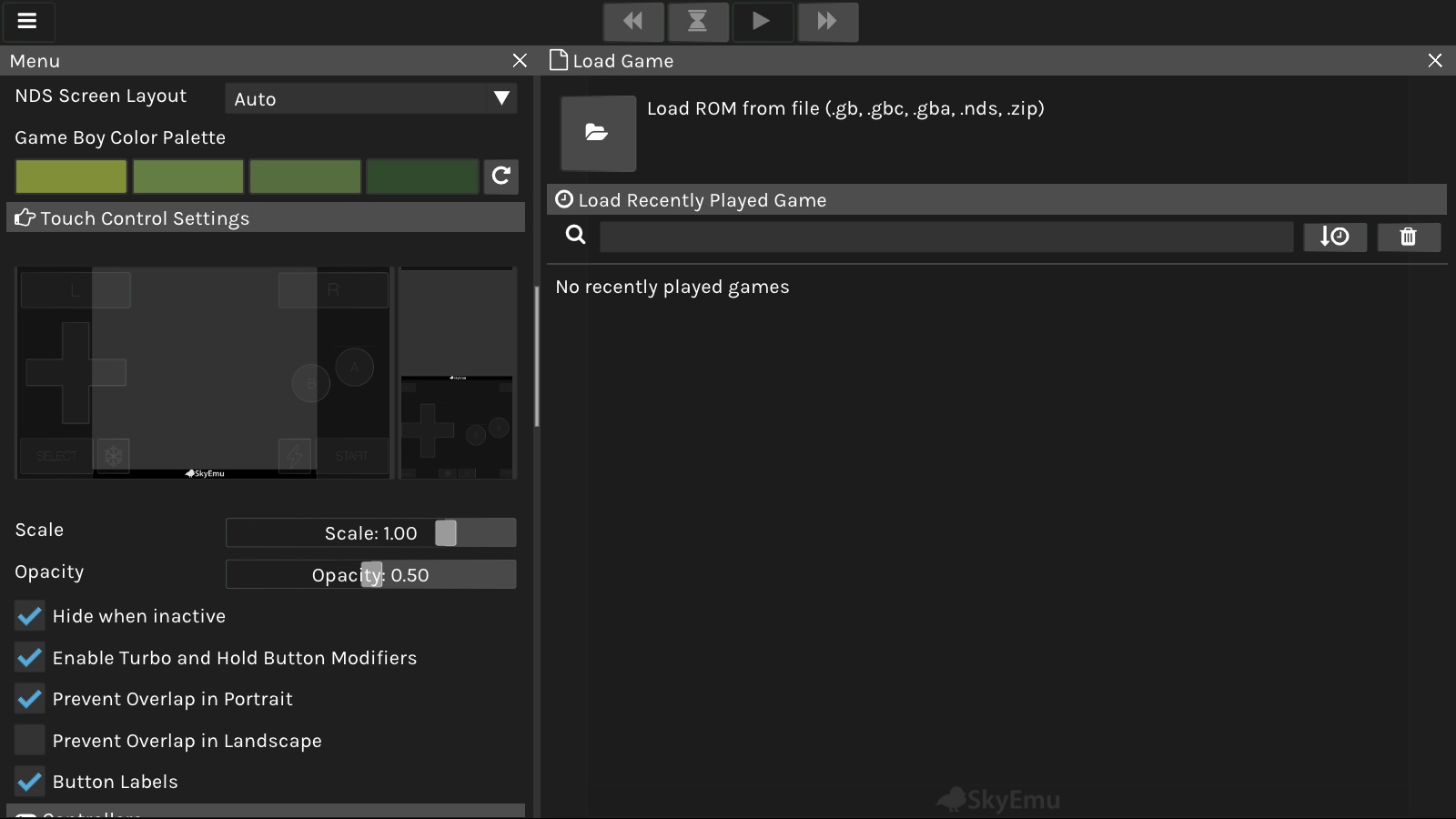
The touch-control view provides scale and opacity controls. It also shows options to hide controls when inactive, use turbo and hold modifiers, and prevent overlap in portrait orientation.
If controls cover too much of the picture, try the scale and opacity settings first. Check both visibility and usability rather than making the controls so faint that you cannot find them.
Check keyboard and gamepad bindings
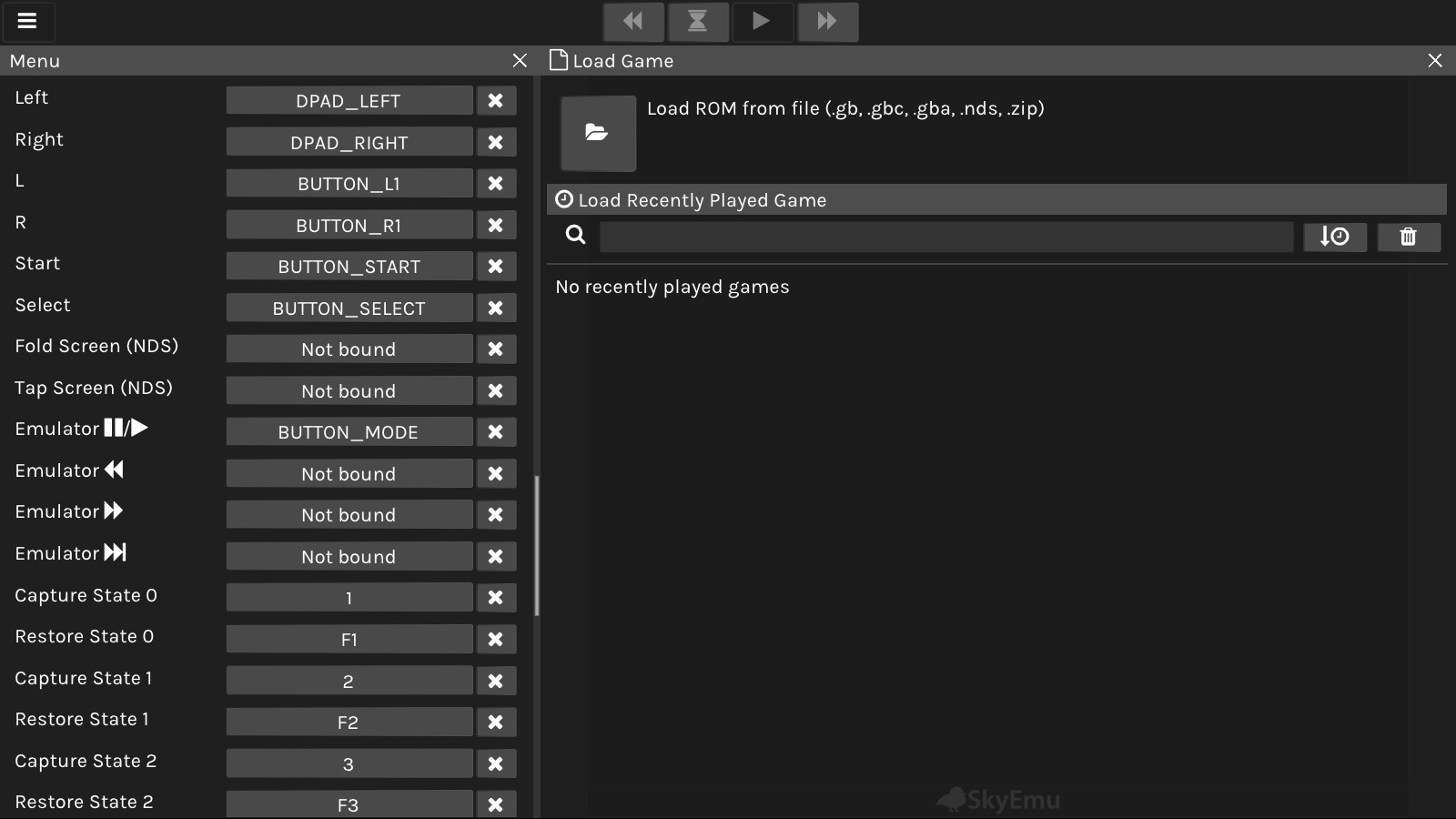
Bindings map input buttons to the emulator’s actions. The supplied view includes directional buttons, Start and Select, playback controls and save-state actions. Review mappings before play, especially if the controller is new to you.
Some advanced controls are intended for special hardware behavior or debugging. Leave unfamiliar options unchanged while diagnosing a simple loading or control problem. The first-session guide covers the basic workflow.